%%{init: {'flowchart': {'curve': 'basis'}}}%%
flowchart LR
    TEX([main.tex]):::source --> ENG{Engine}:::engine
    ENG --> |Pass 1| AUX[Auxiliary files: <br> main.aux, etc.]:::auxiliary
    AUX --> ENG
    ENG --> |Pass 2| PDF([main.pdf]):::final

    classDef engine fill:#e0e0e0,stroke:#757575
    classDef source fill:#aed6f1,stroke:#3498db
    classDef auxiliary fill:#f5b7b1,stroke:#e74c3c,stroke-dasharray: 5 5
    classDef log fill:#fad7a0,stroke:#f39c12,stroke-dasharray: 5 5
    classDef final fill:#99e4d1,stroke:#00bc8c
    linkStyle default stroke:#888,stroke-width:2px;
12 \(\LaTeX\)
Motivation and Scope
The software system known as \(\LaTeX\), based on Donald Knuth’s implementation of \(\TeX\) from the 1970’s, is a cornerstone of typesetting technical documents. If you are already a working mathematician, you have likely already spent hundreds (thousands?) of hours of your life working with this software, and might feel tempted to skip to the next point of interest. Take heed!—this chapter is designed with the hope that all practitioners of mathematics, from novices of typesetting to seasoned professionals, will get something from it. At the same time, this chapter is certainly not to be exhaustive, especially given the number of wonderful \(\LaTeX\) tutorials and reference materials already available. We hope that reading it inspires you to tinker with your own setups, investigate new compilers or packages, and create something new.
In particular, for those already familiar with the basics, we emphasize Section 12.4.4 for a word on some developments in modern compliance standards. For those looking to implement some of the best practices described herein while also systematizing their approach to writing homework, designing course materials, or undertaking other larger-scale projects, we also advertise Section 12.5.
The goal of this chapter is to build a working knowledge of \(\LaTeX\) based on the computational technologies we have already developed to this point. We will integrate package managers, VS Code, and Git to develop a robust ecosystem for typesetting, while also discussing the underlying philosophies of document design with an emphasis on semantics and accessibility.
WYSIWYG (or not)
Most of us learn to type using WYSIWYG (What You See Is What You Get) word processors, such as Microsoft Word, Google Docs, or even more fashionable platforms like Notion. In these programs, the editor and the final output are (ostensibly) the same thing: if we highlight a word and make it bold, it immediately looks bold on the screen.
While WYSIWYG tools are fantastic for writing memos or short essays, they become much more difficult to manage with larger projects—especially when technical content is involved. Managing cross-references, bibliography styles, and consistent margins across a sizeable document in Word is notoriously frustrating! The WYSIWYG paradigm forces us to constantly worry about how the page looks, distracting us from what the text actually says. Worse, we see what the text looks like through the entire process, right up until we export it to PDF for submission (or, heaven forbid, we submit the .docx file itself), at which point differences in software versions or operating systems might completely ruin the formatting over which we have agonized for so long.
\(\LaTeX\) operates on a fundamentally different philosophy: it is a markup language. We write the document in unformatted plaintext, just as one does in HTML or Markdown, and use special sequences of characters to encode the logic—then a compiler translates the text into a typeset PDF. This provides several important advantages for the modern mathematician:
- We can focus on content, not presentation: We can write out proofs without ever needing to pause to mouse about on a margin or font size selector! This seems like a silly point, but it is intended to prompt real reflection on mental processes and the conditions under which we do mathematical activities.
- Math as code: Expressions are typed using logical rules rather than clicking through cumbersome drop-down menus in an Equation Editor.
- Consistency: We will use commands, like
\section{}, which guarantees that stylistic choices are the same (and instantly modifiable!) across the entire document. - Portability: Because our source code is just plaintext, it will be easily readable on any operating system well into the future, and interacts perfectly with version control tools like Git.
When to Avoid \(\LaTeX\)
While \(\LaTeX\) is an incredible tool for typesetting mathematics, it can be an active impediment for the doing of mathematics. As we try to solve difficult problems, the cognitive load of remembering whether we closed all our braces or properly aligned a matrix consistently derails our train of thought.
Tip
Think through proofs before you typeset them!
Mathematical discovery is a messy, non-linear process. There is a kinesthetic aspect to doing math—the embodied acts of writing down equations, drawing sloppy diagrams, or contemplating scrawlings on a chalkboard shared with friends—which helps our brains process spatial and logical relationships, in ways that are difficult to quantify! Only after having wrestled with chalk, pencils, styli, and their ilk, when the logic is sound and an argument burns in our hearts, should we sit down at a keyboard to typeset.
On the other hand, many students pride themselves on taking notes during live lectures in \(\LaTeX\). While this is certainly possible—and a great service to fellow learners, when done with care and shared widely!—we gently suggest other tools for this work. In particular, Quarto allow us to mix simple Markdown (Chapter 13) with \(\LaTeX\) equations and other technologies which make, for example, visually depicting logical relationships in real time much easier. See Chapter 14 for more.
Mathematical Writing
Another important domain of hidden curriculum, which receives only cursory mention throughout this book, is the skill of writing mathematics. This would require a whole other book unto itself. For now, we refer the reader to many wonderful articles written by thoughtful mathematicians, e.g., “A Guide to Writing Mathematics” and the much more exhaustive A Primer of Mathematical Writing (Krantz 2017).
Core Concepts
Content vs Presentation
“Not making enough use—or (sadly all too frequently) not making hardly any use—of the opportunities afforded by LaTeX to separate the content of a document from its visual appearance. In particular, too many attempts to engage in visual formatting at early to intermediate stages of writing a working paper, a technical note, or whatever.”
— Mico, “What are the most common mistakes that beginners of (La)TeX and Friends make?”
As we break from the world of WYSIWYG, we must embrace the fundamental philosophy of \(\LaTeX\): separating content and presentation wherever possible. We will discuss this at length throughout the chapter, so we only mention a brief example here to highlight the principle.
When we type \chapter{Introduction} into a \(\LaTeX\) document, we are explicitly declaring the semantic meaning of the text (its content). What we have written says nothing about font size, typeface, or alignment on the page. Instead, it is the work of the compiler to look up the design rules for a “chapter,” then apply them globally through our document (the presentation). Embracing this separation is an important—but also a difficult!—step towards learning to use \(\LaTeX\) effectively.
Distributions, Engines, and Packages
Here we briefly describe how plaintext code becomes a PDF via \(\LaTeX\). We emphasize three particular layers of the ecosystem:
- The Distribution: This is the bundle of software we install on our machines to actually implement \(\LaTeX\). In this guide we use the standard TeX Live distribution (bundled as MacTeX for macOS), which contains everything we need to typeset our documents.
- The Engine: This is the specific binary that reads our code and builds the PDF. The classic engine is
pdflatex. In this guide, we will heavily emphasizelualatex, an engine that natively handles Unicode and other important modern features. - The Packages: These are particular extensions that provide additional functionality to the basic \(\LaTeX\) system, which we load into specific documents as needed.
The Compiler Pipeline
Because \(\LaTeX\) separates content from presentation, it has to read our documents holistically to understand how everything fits together. It does this by making multiple passes over our code.
In a simple document, the engine reads our file (let’s call it main.tex), generates a result called main.pdf, and simultaneously generates a number of auxiliary files (like main.aux). These auxiliary files are the compiler’s scratch work—it uses them to take notes on where equations and sections ended up, so that it can number them correctly on the next pass.
For a complex project, such as a paper with a bibliography (see Chapter 15) and cross-references, the pipeline grows in complexity. The engine has to run once to figure out what citations we used, hand the list off to a completely different engine (like bibtex or biber) to format the bibliography, and then run twice more to ensure the page numbers line up perfectly. This is a standard 4-pass recipe:
%%{init: {'flowchart': {'curve': 'basis'}}}%%
flowchart LR
    TEX([main.tex]):::source
    BIB([bibliography.bib]):::source
    P1{Pass 1: <br> pdflatex}:::engine --> AUX1[main.aux]:::auxiliary
    P1 --> LOG1[main.log]:::log

    TEX --> P1
    AUX1 --> P2{Pass 2: <br> bibtex}:::engine
    BIB --> P2
    P2 --> BBL[main.bbl]:::auxiliary
    P2 --> BLG[main.blg]:::log

    P3{Pass 3: <br> pdflatex}:::engine -.-> AUX2[main.aux]:::auxiliary
    P3 -.-> LOG2[main.log]:::log

    TEX --> P3
    AUX1 --> P3
    BBL --> P3

    AUX1 -.-> AUX2
    LOG1 -.-> LOG2

    P4{Pass 4: <br> pdflatex}:::engine -.-> AUX3[main.aux]:::auxiliary
    P4 -.-> LOG3[main.log]:::log
    P4 --> PDF([main.pdf]):::final

    TEX --> P4
    AUX2 --> P4
    BBL --> P4

    AUX2 -.-> AUX3
    LOG2 -.-> LOG3

    classDef engine fill:#e0e0e0,stroke:#757575
    classDef source fill:#aed6f1,stroke:#3498db
    classDef auxiliary fill:#f5b7b1,stroke:#e74c3c,stroke-dasharray: 5 5
    classDef log fill:#fad7a0,stroke:#f39c12,stroke-dasharray: 5 5
    classDef final fill:#99e4d1,stroke:#00bc8c
    linkStyle default stroke:#888,stroke-width:3px;
In the diagrams above, the blue files (main.tex and bibliography.bib) are our input files; the red files are auxiliary (main.aux and so on); the green file is the desired output (main.pdf); and the grey diagonal boxes are engines (like pdflatex, lualatex, or bibtex). Dashed lines indicate when files are updated, rather than generated outright.
We have also colored main.log and main.blg yellow to indicate that, while they aren’t the desired PDF, they are human-readable log files which detail everything done by the engine in a given pass. These are important places to look for clues when our documents fail to compile!
Getting Started
We begin by mentioning Overleaf, which is a fantastic and popular online \(\LaTeX\) editor that enjoys a growing number of features (including collaborative editing) and a free account tier. Andrew Gainer-Dewar, who visited Carleton from 2012–2014, has produced a guide with many examples and exercises available on this platform:
Consistent with the posture of this guide, we avoid recommending cloud-based tools: a mathematician who does all their work on Overleaf risks losing decades of material if they are locked out of their account.
Instead, this tutorial makes use of the tools we have previously established, which run locally on our machine. Remember that one of the great advantages of \(\TeX\) and its derivatives, as mark-up languages stored in plaintext, is their boundless portability. Tools that we have already mentioned, such as Git (Chapter 5), provide a robust alternative for collaboration and versioning.
Setup
As a reminder, we should never edit \(\LaTeX\) files (.tex, .bib, etc.) with a word processor. This section is written with VSCode as the default editor in mind, as discussed in Chapter 6, and assumes use of one of the package managers described in Chapter 3 accessed via a terminal emulator (see Chapter 2).
Installation
We can install TeX Live with one of the following CLI commands:
macOS:
brew install --cask mactex-no-guiWe can instead use brew install --cask mactex to also install an alternative GUI.
- Ubuntu:
sudo apt install texlive-full- Arch Linux:
sudo pacman -Syu texlive-metaWe can also run tex --version to confirm that we are up to date.
Manual Compilation
Next, we need a simple file to test our compilers:
If we save this as main.tex and navigate to the enclosing directory in a terminal (see Section 2.3.1 if you need a refresher), then we can compile the document using the command: pdflatex main.tex. This will produce a rather boring file called main.pdf, as per our code, in the same directory.
There are several ways to improve this state of affairs. Firstly, as we have described, \(\LaTeX\) requires multiple runs (“compilation passes”) because of how it processes documents and auxiliary files. If we want cross-references, labels, lists, tags, bibliographies, page numbers, and so on—and we do!—then we’ll need to run the previous command (and others) many times. Wrappers like Latexmk and IDEs like TeXshop and Overleaf automatically detect these warnings and run the compiler as many times as necessary, until the document converges. So, we can already improve on the above command by instead running latexmk --pdf main.tex. But we want something easier!
IDE Extension
Next we’ll set up LaTeX Workshop for VS Code, which is found by clicking on the Extensions tab (or ). Once configured, we can click Build to compile a project (without needing to recall CLI commands). Indeed, the default behavior1 is for Save () to trigger an auto build using the default (first) recipe.
Now, there are numerous \(\LaTeX\) engines we can use to generate documents. Here we will focus on LuaLaTeX—which uses Unicode (UTF-8) natively and supports OpenType/TrueType fonts, but is slower—given some of our goals to come later in the chapter. With some compilers, we can use directives to indicate the engine we want, like this:
The emoji package will not work with the default compiler (pdfLaTeX) but, by including the % !TEX program = lualatex directive, we instruct LaTeX Workshop’s Latexmk-based recipe to switch engines when compiling the document. Try the following:
- Open
main.texwith VS Code - Update it to match the file above
- Open VS Code’s Panel () and ensure LaTeX Compiler is selected (this is optional—just to see what the recipe is doing!)
- Save the file, triggering an auto-build
- Drag the resulting
main.pdfinto VS Code to create a split view - Replace
cowboy-hat-facewithmushroom, then save again to see the live update!
Taking this further, we can change the default recipe so that all our documents compile using LuaLaTeX, even without the aforementioned directives, in the Settings (recall Section 6.3.5):
settings.json
{
    // previous settings go here
    "latex-workshop.latex.recipe.default": "latexmk (lualatex)",
    "latex-workshop.latex.autoClean.run": "onFailed",
}
We’ve also added an autocleaning command, which removes auxiliary files after a failed build. When working with \(\LaTeX\), every compilation generates a number of files that help keep track of references, citations, and document structure—but they can also pile up quickly! Autocleaning prevents confusing or outdated information from lingering in our project, which can cause incorrect references, missing citations, or errors that seem unrelated to our code.
Ignoring Auxiliary Files
When we compile a \(\LaTeX\) document, a number of auxiliary files (ending in .aux, .log, and so on) will also be generated. These arise because of the multi-pass nature of the compilation: the purpose of these files is to keep track of equations and labels in our document, so it can number them correctly on the next pass. These files are not a sign that we’ve done something wrong—in fact, they are important for diagnosing errors and speeding up subsequent compilations—but we should avoid committing them to version control. The resulting PDFs, being binary files, are also inappropriate to commit!
Let’s teach Git to ignore them:
.gitignore
Just as in other coding environments, we should commit early and commit often, with concise but meaningful descriptions which depict exactly the changes that have been made.
Anatomy of a Document
Each \(\LaTeX\) document is fundamentally divided into two parts: preamble and body.
For those of us with programming experience with languages like C or Python (Chapter 7), we can think of the preamble as where libraries are included and global variables are defined.2 The things we type in the preamble are not printed directly to the page. Instead, we declare the document type (\documentclass{}), load packages (e.g., \usepackage{}), set up metadata (e.g., \title{}), and define custom macros.
The body, on the other hand, is everything between \begin{document} and \end{document}—the actual content of our paper. This is where we write our text and our mathematics, place a table of contents or bibliography, include figures, and so on. Once again, we emphasize the content/presentation divide: we keep formatting rules to the preamble (or in a separate style file, as we’ll see in Section 12.3.3.3, which is linked to the document via the preamble) and ensure that the body remains focused entirely on the work to be done.
Our first \(\LaTeX\) document, Listing 12.1, consists of our editor directive (Line 1), the preamble proper (Lines 2–3), and the body (Lines 5–7), with some generous whitespace (Line 4) for human readers.
Writing Text
Special Characters
Writing plain text in \(\LaTeX\) is relatively straightforward, though there are a number of quirks for those used to WYSIWYG processors. For example, if we want to bold or italicize a bit of text (which should only be done sparingly—more on that later), we have to write it as follows:
I want to \textbf{bold this} and \emph{italicize this}!Notice the use of the backslash \ and curly braces {}. These characters are used to denote to the engine that something special is happening. As a result, we cannot use them in regular text or things will go wrong. Try running Listing 12.1 with the above and below lines of code inserted into the document body:
I am 100% sure that this will not render properly.The % symbol indicates a comment—a bit of text in the source code that is ignored by the compiler, usually intended for human readers or to temporarily disable segments of code—so most of the above block does not appear in the final PDF.
Below is a table of these special characters, which includes how they are understood by the compiler and how to type them if needed:
| Character | Purpose | How to type |
|---|---|---|
\ |
Escape character | \textbackslash |
{ and } |
Grouping | \{ and \} |
% |
Comment character | \% |
~ |
Non-breaking space | \textasciitilde |
& |
Alignment (tables, arrays) | \& |
# |
Parameter marker (in macros) | \# |
$ |
Enters math mode | \$ |
^ |
Superscript (in math mode) | \textasciicircum |
_ |
Subscript (in math mode) | \_ |
Punctuation marks
Quotations in \(\LaTeX\) are very literal. This is a feature, not a bug—we get more control!—but it leads to a predictable error for new users. Try compiling Listing 12.1 with this line of code inserted:
Claudio told me: "Separate the content from the presentation!"Notice that the quotation marks are not the correct direction: \(\text{"Like this!"}\) instead of \(\text{``Like this!''}\) Instead, we use the backtick key (`) for each left quotation mark and the apostrophe (') for each right mark. To render the sentence correctly, we need:
Claudio told me: ``Separate the content from the presentation!''In addition, \(\LaTeX\) gives us fine control with dashes. We can write:
- A hyphen, like for someone with two last names:
Gómez-Gonzáles. - An en dash, like for a date range or listing collaborators:
2020--2026andPicard--Riker. - An em dash, separating parts of a sentence
---like this---for emphasis.
Lastly, nothing goes wrong when we type ..., but a better habit is to use \dots.
Hierarchical Structure
Most \(\LaTeX\) documents are built around sectioning commands, like \chapter{} or \section{} or even \subsubsection{}, and environments with distinct formatting from the main text. Consider the following:
main.tex
% !TEX program = lualatex
\documentclass{article}

\begin{document}

\section*{Important information}

These are a few of my favorite things:
\begin{enumerate}
\item Raindrops on roses
\item Whiskers on kittens
\item Bright copper kettles
\item Warm woolen mittens
\item Brown paper packages (tied up with strings)
\end{enumerate}

\noindent It's helpful to remember them when:
\begin{itemize}
\item The dog bites
\item The bee stings
\item I'm feeling sad
\end{itemize}

\noindent Then I don't feel so bad!
Anyways, thank you for reading.

Now, here's a paragraph about where I grew up\dots
\end{document}
This document consists of only a single section, but also includes two lists: an enumerate environment, which labels the items from 1 onwards, and an itemize environment, which makes a bulleted list. You should experiment with this code:
- Remove the
*in the\section{}command. - Make nested lists by placing another
enumerateoritemizeenvironment into either list. - Remove the
\noindentthat starts some of the sentences.
Notice how, despite the line break in the code (lines 24–25), there is no corresponding paragraph break in the compiled document at this position. To start a new paragraph, we leave a completely blank line in the code (line 26). From there, the compiler will automatically handle the indentation and vertical spacing according to our document class.
Note
In general, whitespace does not directly transfer from code to the compiled document. For example, replacing line 11 with \item Whiskers on kittens will not change the resulting PDF.
There are a number of other tools we can use to insert whitespace, such as:
\,and\;and\quadand\qquadinsert horizontal space;\!is negative space\vfillinserts a vertical space that stretches to fill the available area (usually on a given page)\vspace{}adds vertical space between elements of some specified length\\will create a line break
Warning
Using \(\LaTeX\) can be disorienting at first! Those who are used to word processors can become frustrated when whitespace in their code does not translate to the compiled document, and often resort to the double-backslash (\\) to force line breaks when they want more room between paragraphs. Don’t fall for this trap!
The \\ is meant strictly for breaking lines inside of tables, matrices, or multiline equations, to be discussed shortly. Using this break to format paragraphs creates structural issues and triggers "Underfull \hbox" warnings during compilation. Fundamentally, \\ controls appearance, not semantic meaning in the way that sectioning, environments, and paragraphs do, and can disrupt accessibility tools.
A slightly better option is to include \medskip or \bigskip between paragraphs, which creates vertical space to emphasize that we have made a big transition, but we should still ask ourselves: “If someone couldn’t see this spacing, would they still understand the structure?” A better alternative is to simply start a new section. Try adding \subsection*{My childhood} before line 27 in the above to see how things change. Ultimately, the moral is: reflect on the hierarchical structure of the document, then let the compiler handle the layout!
Writing Mathematics
Important Packages
Now it’s time to do some math. First, we’ll add some lines to our preamble:
% !TEX program = lualatex
\documentclass{article}
\usepackage{amsmath, amsthm}
\usepackage{mathtools}
\usepackage{unicode-math}
These packages come from the AMS–LaTeX bundle (created by the American Mathematical Society), and serve a few different purposes:
amsmath: Extends LaTeX’s native math capabilities with environments for multiline equations (likealign), better spacing, and commands like\text{}for writing normal words inside math environments.amsthm: Adds support for structured environments like theorems, proofs, and definitions, allowing us to easily manage numbering and visual styles.mathtools: Extends (and fixes some lasting graphical issues with)amsmath.unicode-math: Provides hundreds of additional symbols that are essential for mathematics.
Note
A common package seen in \(\LaTeX\) templates and forums is amssymb, which is used for blackboard bold letters (e.g., \(\mathbb{R}\)), the empty set (\(\varnothing\)), and specialized arrows (e.g., \(\hookrightarrow\)). Because this guide emphasizes the LuaLaTeX engine, unicode-math replaces amssymb, amsfonts, and several other legacy packages, to meet modern Unicode standards.
Typesetting Expressions
There are two main ways to display mathematics with \(\LaTeX\).
Inline math flows within our text. We enter and exit inline math mode using single dollar signs ($), such as:
Let $x \in \mathbb{R}$ and suppose $x^2 = 2$This code renders as: \(\text{Let $x \in \mathbb{R}$ and suppose $x^2 = 2$}\). Notice that the compiler automatically adjusts the spacing and font to distinguish variables from regular text.
Note
In \(\LaTeX\), curly braces {} act like parentheses do in ordinary mathematics—they group content together. This is essential in compound expressions. For example, a_10 renders as \(a_10\), which probably isn’t what we wanted—instead, try a_{10}. We can always use additional parenthesis to make our arguments clear!
On the other hand, display math breaks the math out onto its own centered line, which is handy for complex expressions or equations that we want to call attention to. We enter and exit display math mode using \[ and \].
The roots of a quadratic equation $ax^2 + bx + c = 0$ are given by
\[ x = \frac{-b \pm \sqrt{b^2 - 4ac}}{2a}. \]
Notice how \frac{}{} takes two arguments: the numerator in the first set of braces, and the denominator in the second. As expressions get more complex, balancing these braces becomes a common source of compiler errors!
Warning
Older \(\LaTeX\) tutorials often enter display math using double dollar signs ($$ ... $$). This is an outdated method from plain \(\TeX\) which breaks vertical spacing in modern documents and can cause a number of other issues. Always use \[ ... \].
Though we will not dwell on them, there are a number of useful environments we can use to display more complicated mathematics. The align environment provided by the amsmath package, for example, gives us a way to arrange multiple equations around a common horizontal anchor.
\begin{align*}
    (x+y)^2 & = (x+y)(x+y) \\
        & = x^2 + xy + yx + y^2 \\
        & = x^2 + 2xy + y^2
\end{align*}
The ampersand (&) tells the compiler where to align the rows, and the double-backslash (\\) tells it to break the line. As we’ve seen with the \section*{} command, using align* tells the compiler not to number the equations. If we remove it, \(\LaTeX\) will automatically number each line!
We can also display things like limits, dynamically-sized parenthesis, matrices, sums, and integrals:
\[ \lim_{n \to \infty} \left( 1 + \frac{1}{n} \right)^n = e \]\[
\det \begin{pmatrix}
a & b \\
c & d
\end{pmatrix} = ad - bc
\]\[ e^x = \sum_{n=0}^\infty \frac{x^n}{n!} \]\[ \int \log x \, dx = x \log x - x + C \]Notice that the last of these uses whitespace (\,) to distinguish \(\log x\) from \(dx\)—otherwise, the expression looks like \(\log x dx\), as though we intended to typeset multiplication of variables (\(x \cdot d \cdot x\)). But this visual hack goes against our semantic goals! A more accessible (and more aesthetically pleasing) solution is to include another package like diffcoeff, replacing the above with
\[ \int \log x \dl{x} = x \log x - x + C \]This package also includes typesetting for derivatives, like \diff{x}{t} and \diffp{z}{y}. Rather than hacky solutions, we should always prefer well-designed packages!
Theorems and Proofs
The amsthm package provides the tools to define formal mathematical environments. By defining these in our preamble, we guarantee that every theorem in our document looks identical, and we let \(\LaTeX\) handle the numbering. That way, if we rearrange our theorems midway through writing a paper, the compiler will automatically update all the numbering for us!
First, we set these up in the preamble:
\newtheorem{theorem}{Theorem}
\newtheorem{lemma}[theorem]{Lemma}
Then, in the body of our document, we simply wrap our text in the environment:
\begin{theorem}
For a right triangle with legs $a$ and $b$ and hypotenuse $c$, we have
\[ a^2 + b^2 = c^2. \]
\end{theorem}

\begin{proof}
Left as an exercise to the reader.
\end{proof}
The optional [theorem] argument in the Lemma definition tells the theorem and lemma environments to share a counter. The proof environment used here comes standard with amsthm, which automatically italicizes the word “Proof.” at the start of the block, and automatically places a right-justified professional-looking tombstone \(\square\) at the very end. When using these environments, we can provide more detailed descriptions by adding square brackets after the \begin{} statement:
\begin{theorem}[Euler's Identity]
    For any $x \in \mathbb{R}$, we have $e^{ix} = \cos(x) + i \sin(x)$.
\end{theorem}

\begin{proof}[Proof sketch]
    This follows by expanding the Taylor series for the exponential, sine, and cosine functions.
\end{proof}
Diagrams
Here we discuss tables, graphics, and other diagrams, all of which provide difficulties with regards to our accessibility goals. We only provide a brief introduction to these ideas, deferring to the plethora of online guides and documentation for further details, and mention further details in Section 12.4.4.
Tables
Tables in \(\LaTeX\) are, by default, built using the tabular environment. We specify the alignment of the columns using l (left), c (center), or r (right) and, just like in the align math environment, we use & to move to the next column and \\ to move to the next row.
\begin{tabular}{r|cc}
    \hline
    Algorithm & Time Complexity & Space Complexity \\
    \hline
    Bubble Sort & $O(n^2)$ & $O(1)$ \\
    Merge Sort & $O(n \log n)$ & $O(n)$ \\
    Quick Sort & $O(n \log n)$ & $O(\log n)$ \\
    \hline
\end{tabular}
Notice the use of \hline to draw horizontal lines and the pipe | for vertical lines. That said, a good typographic rule of thumb is to avoid using vertical lines in a table, and to use horizontal lines sparingly. Instead, we should let the alignment of the text guide the reader.
Note
Given how cumbersome and finicky these environments can become, a number of useful online tools exist for generating the \(\LaTeX\) code needed to produce desired tables. We also recommend the booktabs package, which provides much better horizontal lines (\toprule, \midrule, \bottomrule) and other features for professional, easy-to-read tables.
Graphics
To include external images, we rely on the graphicx package. We need an image to demonstrate this, which we save into the same directory as our main.tex file as nebulabrot.png. Next, we add the graphicx package to our preamble, which allows us to use the \includegraphics command.
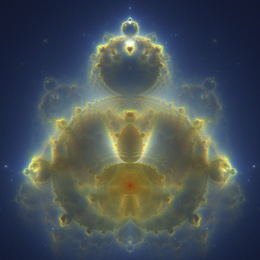
Because of our emphasis on accessibility, we should keep in mind that we cannot rely on screen readers to “see” an image in our document. As we will discuss in Section 12.4.4, modern \(\LaTeX\) compilers with tagging enabled allow us to pass alt text directly into the image. Though we have not yet configured our document for tags—we will!—we can still include the whole command:
%%% In the preamble:
\usepackage{graphicx}
% ...
%%% In the body:
\begin{document}
\begin{figure}[htpb]
    \centering
    \includegraphics[width=0.2\textwidth,
        alt={A symmetrical nebulabrot fractal showing dense, golden-yellow clouds
        which form spiraling, nebula-like structures on a dark blue background.}
    ]{nebulabrot} % The file name goes here
    \caption{A nebulabrot.}
\end{figure}
\end{document}
The figure environment tells \(\LaTeX\) that the image is a “float”: an environment for content that should not be broken across pages (like images and tables) and whose position will be automatically determined by typesetting algorithms. Rather than forcing the image to render exactly where we typed the code (which might leave an unsightly half-page of empty space if it doesn’t fit), the [htpb] argument gives the compiler a list of preferences: try to put it here, then at the top of a page, then the bottom, and finally on a separate page if necessary.
See, for example, this guide for more specifics on alt text, as well as other tags like artifact (for items we want to flag for screen readers to ).
TikZ
For natively generated vector graphics, the tikz3 package is a powerful programmable drawing language. We can use TikZ to plot functions, draw commutative diagrams, or make more complicated visualizations of manifolds—it is truly a bottomless rabbit hole. We only demonstrate the first of these in this short tutorial:
%%% In the preamble:
\usepackage{tikz}
% ...
%%% In the body:
\begin{tikzpicture}
    \draw[thick, ->] (0,0) -- (2.5,0) node[right] {$x$};
    \draw[thick, ->] (0,0) -- (0,2.5) node[above] {$y$};
    \draw[blue, thick] (0,0) parabola (1.5,2.25) node[right] {$y = x^2$};
\end{tikzpicture}
However, from an accessibility standpoint, tikz is a black box: screen readers cannot interpret the mathematical meaning of a tikzpicture environment. Thus, if we use tikz to draw a diagram, we must ensure that all mathematical information conveyed in the diagram is also fully explained in the surrounding body.
Code Listings
As mathematicians increasingly rely on computational tools, it is common to include snippets of code in our professional documents. Importing screenshots with \includegraphics{} or formatting code manually using \texttt{} and forced line breaks is problematic for all the reasons we have discussed: We lose all semantic meaning, screen readers cannot effectively parse what is on the page, line numbering is a grueling manual task, and copy-pasting blocks of code from the final PDF is all but impossible. Some of these problems are truly issues with the medium, and are better addressed in terms of alternative solutions, but we can still improve on this state of things.
A better approach is to use a dedicated package for typesetting code with syntax highlighting and formatting, such as listings. Using it, we can configure a basic style (and customize colors, keywords, etc., if desired) for code in our preamble.
%%% In the preamble:
\usepackage{xcolor}
\usepackage{listings}
\lstset{
    language=Python
    breaklines=true,
    upquote=true, % Forces quotation marks to print upright
    numbers=left,
    showstringspaces=false, % Prints spaces correctly
    keywordstyle=\color{teal},
    numberstyle=\tiny\color{violet},
    stringstyle=\color{purple}
}
% ...
%%% In the body:
Consider the following use of slicing:

\begin{lstlisting}
def is_palindrome(s):
    return s == s[::-1]
\end{lstlisting}

\noindent Try testing some examples, like \lstinline|is_palindrome('racecar')|.
In general, we suggest the very powerful minted package—though we do not demonstrate it here because of its reliance on a pygmentize installation and specialized flags needed to grant LaTeX Workshop necessary permissions, which takes us too far afield for this tutorial. Moreover, while these packages can produce striking code blocks, we must keep in mind that PDFs are designed for reading and not data distribution. In particular, copy-pasting from a PDF is treacherous business, due to the introduction of invisible characters, dropping of whitespace, and other typographic issues. If listings are included in a \(\LaTeX\) document, these limitations should be kept in mind! To share executable code, a much better practice is to share raw source files via a version control platform like GitHub (Chapter 5) or to author the document using a web-first tool like Quarto (Chapter 14).
Because of our emphasis on Unicode compatibility, we can use piton. This package is designed specifically for LuaLaTeX, does not rely on external tools, and the authors have had decent luck parsing code snippets out of piton listings. The setup is comparatively simple:
%%% In the preamble:
\usepackage{piton}
\PitonOptions{
    line-numbers = true,
    left-margin = 1em,
}
% ...
%%% In the body:
Behold the power of recursion!

\begin{Piton}
def fibonacci(n):
    """Return the nth Fibonacci number."""
    if n <= 2:
        return n
    return fibonacci(n-1) + fibonacci(n-2)

# Print first 10 numbers
for i in range(10):
    print(fibonacci(i+1))
\end{Piton}

How many function calls do we need to evaluate \piton{fibonnaci(11)}?
On the other hand, all three of these packages are currently listed as incompatible with the \(\LaTeX\) Tagging Project, so we should use them with caution and ensure alternate means of access. At the time of writing, listings is the most urgent incompatibility being addressed by the \(\LaTeX3\) team.
More Complex Projects
Hyperlinks
As documents grow, manually typing “As we saw in Equation 3…” becomes problematic, especially if we need to rearrange the contents of our document during the editing process. Instead, we let \(\LaTeX\) handle the cross-referencing! We’ll do this by adding two more packages to our preamble:
hyperref: Makes the resulting PDF links clickable.cleveref: Enhances cross-referencing features by determining types.
We can then place the \label{} command immediately after the object we want to reference, then use \Cref{} to call back to it.
\usepackage{hyperref}
\usepackage[capitalize, nameinlink]{cleveref}
% ...
\begin{document}

\begin{theorem}\label{thm:pythagoras}%
For a right triangle with legs $a$ and $b$ and hypotenuse $c$, we have
\[ a^2 + b^2 = c^2. \]
\end{theorem}

As we will see in \cref{thm:pythagoras}, the relationship between\dots
\end{document}
Note
Recall Section 12.2.2.1. We need to compile this document twice to resolve the links!
Notice that we didn’t type the word “Theorem” in the text! The \cref{} command from the cleveref package looks at the label, realizes it belongs to a theorem environment, and automatically typesets “Theorem 1” as a clickable hyperlink. If we downgrade the result to a Lemma later, we need only change the environment—\(\LaTeX\) will automatically update our references to it as “Lemma 1”. We can apply labels to \section{}, \begin{theorem}, \begin{equation}, and more.
Organization
As our projects grow from homework assignments to papers, disserations or textbooks, keeping all our code in a single .tex file becomes unmanageable. Instead, it is much better to split our materials into smaller, logical chunks. \(\LaTeX\) provides two primary commands for this:
\input{filename}: This command literally acts as if we had copied and pasted the contents offilename.texdirectly into that location. This allows us to organize our project directory neatly:
my_thesis/
├── main.tex
├── chapters/
│   ├── 01-introduction.tex
│   ├── 02-literature.tex
│   └── 03-methodology.tex
└── images/
└── diagram.png\include{filename}: This is designed for larger divisions. In particular, this command automatically inserts a break before processing the file to included, and more importantly, creates separate auxiliary files (.aux) for each chapter. These files dramatically speed up compilation on massive projects.
In Section 12.5, we will see a practical example of a folder structure that uses \input{} to dynamically load different homework assignments from a content/ subdirectory.
Style Files
At this point in the guide, our preamble has become cluttered with many packages. In working projects, the addition of macros, custom environment definitions, and other stylistic choices can make the document difficult to navigate before we’ve even reached the body!
Just as we separate our chapters into different files, we can extract our preamble into a custom style file (.sty). This allows us to write our setup once, keep it out of the way of our content, and easily reuse it across multiple documents.
Note
When reading documentation, perusing examples online, or submiting files to journals, we might also encounter custom document classes (.cls files). The distinction is simple: a document class (\documentclass{}) dictates the fundamental, global structure of the document (like article, book, or report), and a document can only have one. A style package (\usepackage{}) is a modular collection of macros and dependencies that can be plugged into any class. For personal templates and macros, .sty files are usually the simpler choice.
When designing style files, there are two new commands to be aware of:
\ProvidesPackage{}tells the compiler the name of a desired package and optional release information, which is helpful for debugging.\RequirePackage{}, which functions a lot like\usepackage{}, is designed specifically for package writing: it ensures that a dependency is loaded before the rest of our code runs, and it prevents errors if we accidentally load the same package multiple times in our main document.
We can make our first mystyle.sty file in the same directory as our main.tex:
mystyle.sty
\ProvidesPackage{mystyle}[2026/04/01 Custom Style]

% Packages mentioned thus far
\RequirePackage{amsmath, amsthm}
\RequirePackage{mathtools}
\RequirePackage{unicode-math}
\RequirePackage{diffcoeff}
\RequirePackage{tikz}
\RequirePackage{hyperref}
\RequirePackage[capitalize, nameinlink]{cleveref}
\RequirePackage{graphicx}

% Define our environments
\newtheorem{theorem}{Theorem}
\newtheorem{lemma}[theorem]{Lemma}
With this defined, our working document becomes quite minimal:
SyncTeX
Another difficulty in growing projects is keeping track of which line of code leads to what outputs in our compiled document. Fortunately, one of those pesky auxiliary files provides an automated way for looking backwards! Indeed, the main.synctex.gz file is a map that connects the exact geometric coordinates of the words on our output PDF to the specific line of code in our .tex files that generated them. Many IDEs (in particular, Latex Workshop), use this file to allow us to navigate instantly between the two.
As we are reviewing our compiled PDF in VS Code’s split viewer, hold and click on the text in the PDF: this causes the cursor in our .tex file to jump to corresponding line of code! Conversely, if we are editing a specific equation in the .tex file and want to see how it looks, we try the same manuever (holding ) to see the resulting outputs highlighted on the PDF. For this to work, ensure that SyncTeX is enabled:
settings.json
{
    // previous settings go here
    "latex-workshop.synctex.synctexjs.enabled": true,
    "latex-workshop.synctex.afterBuild.enabled": true,
    "latex-workshop.view.pdf.viewer": "tab",
}
When our documents grow to many dozens of pages, this feature becomes an incredibly valuable tool!
Debugging
All the above is fine when we have nice, correctly formatted \(\LaTeX\), but things become more difficult during the messy process of writing something new (a homework assignment, a paper, and so on). Below are three blocks of code, each of which suffers from an error that will prevent compilation.
Try running each of these by pasting them over the contents of main.tex file and saving. We can see detailed error reports in the Output field of VS Code’s Panel, but the Problems tab gives a much more readable summary of what has gone wrong.
main.tex
Problems (click to expand)
Missing } inserted. LaTeX [Ln 5, Col 1]e^{i \pi}.
main.tex
Problems (click to expand)
Missing $ inserted. LaTeX [Ln 5, Col 1]
Missing $ inserted. LaTeX [Ln 6, Col 1]main.tex
Problems (click to expand)
Undefined control sequence. LaTeX [Ln 5, Col 18]\coloneqq (which renders as \(\coloneqq\), meaning “the left hand side is defined as the right hand side”), we need to include a package like mathtools!
Note that, in all cases, LaTeX Workshop attempts to provide an approximate location (in terms of line and column numbers) of the offending error. In general, it is advisable to always start correcting errors from the top down, since something as simple as a misplaced bracket may cause cascading error flags in otherwise functional code.
Warning
Some IDEs, like Overleaf, will attempt to produce PDF outputs even if the code has important errors, which can lead to bad practices: in particular, ignoring errors and warning! These can contribute to underlying problems that might be difficult to perceive from only glancing at the output PDF. Just because the document compiles does not mean the code is correct!
Best Practices
Before we continue, a few orders are in order. A number of other authors have written on this subject, and we do not claim any particular expertise beyond that derived from time spent reading documentation, speaking with other mathematicians, and consulting with accessibility professionals. We also refer the reader to Ross (2025) and Wong’s primer.
At the time of authorship, the academic community is currently experiencing renewed interest in these topics. This is largely due to impending enforcement of Title II of the ADA for web and mobile app accessibility, with compliance dates in April of 2026 and 2027. Of course, because institutional support for accessibility efforts are rarely (if ever) sufficient, the burden falls on individual scholars and administrative staff. Indeed, the overwhelming response by many schools and programs seems to focus on compelling educators to take down freely available notes and papers, which is the opposite of the objectives of accessibility which underlie this legislation, not to mention the public-mindedness our institutions are meant to be charged with.
While we attempt to outline best practices in this section, we cannot presume to understand the specifics of each situation. Moreover, while we hope to inspire the reader to pursue their own accessible practices, this document should not be considered legal advice!
Semantic Formatting
When using word processors, we become accustomed to visual formatting. If we want to create a section header, it is a common (though problematic) practice to simply highlight the text, make it bold, increase the font size to 16pt, add a line break (of some indeterminate size), and proceed writing as usual. We are telling the processor how we want the text to look. We can do this (though we should not!) in \(\LaTeX\) as well:
main.tex
\noindent \textbf{\large Properties of Integers}
\vspace{1em} % this is a unit of measurement equal to the current font size

\noindent \textbf{Theorem 1.} \textit{The square of an even integer is even.}
This might produce text that looks visually appropriate, but from a semantic perspective it is woefully flat. Indeed, just as when taking notes during lecture or studying a passage in a book, it is the responsibility of the student to understand that not every word the teacher says is of uniform significance. This is a difficult, contextual, and rewarding hermeneutic process—and not something we can expect the compiler to be capable of!
As we have reiterated throughout this guide, our goal with \(\LaTeX\) is semantic formatting. We, the authors, encode the structure that supports the reader’s noesis by telling the compiler what the text is—then we let the engine determine how it should look based on the rules established in the preamble or style file. This is especially important as our mathematical work grows to include collaborators, where many authors need to make sense of what is going into a particular document!
The problems with the approach of Listing 12.2 are manifold:
- Consistency: If we decide later that theorems shouldn’t be italicized, we have to manually find and change every single theorem in our document. We also might make typos!
- Numbering: If we add another theorem before this one, we have to manually change “Theorem 1” to “Theorem 2”, then update all our cross-references throughout the document.
- Accessibility: A screen reader looking at this code just sees bold and italic text. It has no idea that this block of text is logically distinct from the rest of the paragraph—or, worse yet, needs to attempt to infer this. Our references are also not clickable, making the document more tedious to navigate for everyone!
These issues are made all the worse as the project’s scale grows, especially when it involves collaborators!
On the other hand, semantic formatting uses the environment we defined in our preamble:
\subsection*{Properties of Integers}

\begin{theorem}\label{thm:square-of-even}%
    The square of an even number is even.
\end{theorem}
By explicitly tagging this text as a theorem, the compiler automatically numbers it, tracks it for \cref{} (since we used \label{}) and screen readers alike, and ensures the spacing and fonts are perfectly uniform across an entire thesis or book. Just as the curb cuts in sidewalks were originally designed for wheelchair users, but were so beneficial to the general public (who use strollers, bicycles, luggage, carts, etc.) that they became standard practice, semantic design is important for everyone—including you!—involved in the process of writing and reading our documents.
Semantic Mathematics
The philosophy of semantic formatting applies just as strongly to mathematics. When we are typing expressions, we should always write what the math means, not just what it looks like.
Another common faux pas committed by early practitioners of \(\LaTeX\) is of the form
\[ e^{i \pi} = cos(\pi) + i sin(\pi) = -1. \]While this might not look so bad for a first-time user, it will make seasoned writers of mathematics wince! The letters in the trigonometric functions look like italicized variables being multiplied, i.e., \(cos \pi\) and \(sin \pi\) rather than \(\cos \pi\) and \(\sin \pi.\) Even the spacing between the letters of the function and the following \(\pi\) is incorrect! A beginner might attempt to correct this visually:
\[ e^{i \pi} = \text{cos}(\pi) + i \text{sin}(\pi) = -1. \]While this might look more acceptable on the PDF, it is semantically incorrect! The \text{} command tells the compiler to stop doing mathematics, print a normal word, then resume math mode; for accessibility tools, this breaks the expression into fragmented pieces.
The correct approach is to use mathematically aware commands, many of which are built into \(\LaTeX\) and its standard packages: \cos, \sin, \lim, \ker, etc. By using these, the compiler understands we are using a mathematical operator—it automatically uses the correct roman font, applies the proper spacing between the operator and parenthesis or other adjacent characters, and tags it for accessibility tools (when correctly configured). For operators that \(\LaTeX\) doesn’t know by default or might not appear in our favorite packages, we define them semantically in our preamble using the amsmath package’s \DeclareMathOperator{}{} command:
%%% In the preamble:
\DeclareMathOperator{\Span}{span}
\DeclareMathOperator{\Image}{im}
% ...
%%% In the body:
If $\{ v_1, \dots, v_n \} \subset V$ is a basis and $T: V \to W$ is a linear transformation,
then the image of $T$ is given by the span of the image of basis vectors:
\[ \Image(T) = \Span\{ Tv_1, \dots, Tv_n \}. \]
Whenever we find ourselves fighting the compiler with manual spacing commands like \! or \quad inside an equation, or using \text{} to format a variable, we should pause and reflect: Is there a semantic macro we should be using instead?
Don’t Repeat Yourself
In mathematics, when we find the same style of argument applies in apparently unrelated examples, it is often a hint of some deeper structure whose elucidation enriches our understanding. Similarly, when we find ourselves writing similar sequences of commands more than twice, we should design an abstract method which encapsulates them all. A fundamental principle in computer science is DRY: Don’t Repeat Yourself!
We have just seen an example of this principle in \(\LaTeX\) using \DeclareMathOperator{}{}, but a more versatile option is \newcommand{}{}. The most basic application is to replace tedious and frequently used expressions like \mathbb{R} with something much shorter, like \Rb:
\newcommand{\Rb}{\mathbb{R}}These are useful, and not just for saving keystrokes—if we are submitting a paper to a journal that requires \mathbf{} instead of \mathbb{} letters, we can correct our code without perilous Find-Replace commands. But we can also create commands that take arguments.
For example, suppose we are writing a physics paper and constantly need to typeset with bra–ket notation. Doing this manually is both time-consuming and error-prone. Instead, we can define macros in our preamble to handle the formatting for us:
\newcommand{\bra}[1]{\left\langle #1 \right|}
\newcommand{\ket}[1]{\left| #1 \right\rangle}
\newcommand{\braket}[2]{\left\langle #1 \middle| #2 \right\rangle}
The [1] and [2] tell the compiler how many arguments to expect. In the body of our document, we can type \braket{u}{v} and the compiler will dynamically insert u and v exactly where the #1 and #2 appear in our definition: \(\left\langle u \middle| v \right\rangle\).
Some Handy Macros
Here we include useful examples of increasing abstraction.
Shorthand. The simplest macros just replace a long string of text with a short one. We have already seen commands like
\newcommand{\Rb}{\mathbb{R}}
\DeclareMathOperator{\Span}{span}
\DeclareMathOperator{\Img}{img}
We remark that many other guides write the even shorter
\newcommand{\R}{\mathbb{R}}, but we eschew the practice since this pattern will not work for all letters—for example,\His already defined and should not be overridden. Thebhere is mnemonic—we should readRbas “R-bold”. In general, it is better to avoid defining our own single letter commands.Commands with arguments. Suppose we are writing notes where we want each newly introduced vocabulary word to be bolded and colored blue. We could write things like
\textbf{\textcolor{blue}{kernel}}for each instance throughout the body, but a better solution is a semantic macro:
\newcommand{\vocab}[1]{\textbf{\textcolor{blue}{#1}}}Now we can simply type
\vocab{kernel}!Optional-argument commands. We can expand on the above by making more flexible macros:
\newcommand{\highlight}[2][yellow]{%
\colorbox{#1}{#2}%
}
There are a few details to unpack here:
- The
[2]means the command takes two arguments - The
[yellow]indicates that the first argument is optional, defaulting to yellow when it is not specified. - Inside the definition, the
#1and#2refer to our arguments (the color and text to be highlighted, respectively) - The
\colorbox{}{}draws the desired box - The
%symbols are used to end line without contributing additional whitespace
Also note that this command would need the
xcolorto function if we had not includedtikzin ourmystyle.styfile. Remember that this is not a particularly accessible example, since it relies purely on visual styling to convey emphasis!- The
Meta-macros. The
todonotespackage is excellent for leaving comments between collaborators working on a larger project, but its syntax can be clunky. We have designed an abstract macro towards this end, one which actually writes new macros! While we do not explain the workings of this magical command here, we do not need to understand how the\expandafterand\csnamecommands work in order to use it:%%% In the preamble: \usepackage{todonotes} \newcommand{\newperson}[2]{% \expandafter\newcommand\csname #1\endcsname[2][]{% \todo[color=#2,##1]{##2}}} % Create authors using standard colors \newperson{claudio}{lime} \newperson{xochitl}{cyan} % ... %%% In the body: Given a branched cover\xochitl{We forgot to define this!!} of complex varieties $\pi: \tilde{X} \to X$, we say that $\pi$ is \emph{compressible} if there is a Zariski open $U \subseteq X$ and a branched cover $\tilde{Y} \to Y$ with $\dim Y < \dim X$ together with a map $f: U \to Y$ and isomorphism $\tilde{X}|_U \cong f^* \tilde{Y}$. \claudio[inline]{Let's make some diagrams for this.}The
\newperson{}{}command itself programs new \(\LaTeX\) commands! With the resulting\claudio{}and\xochitl{}commands, the authors can leave inline or margin comments (with clear color attribution!) in the compiled PDF. We can use colors likepink,yellow,lime,cyan,magenta, and more!
Accessibility
Throughout this tutorial, we have made several choices to ensure our documents are as accessible as possible. As we have emphasized, producing a beautiful PDF is only half the battle!—we need to ensure our documents are legible to screen readers and assistive technologies.
Historically, this has been very difficult with \(\LaTeX\). Standard compilers essentially “draw” letters on a page without preserving their underlying meaning. Standard packages like amssymb create blackboard bold characters (\(\mathbb{R}\)) by pulling from a specific visual font table, resulting in a PDF that a screen reader cannot translate back into the Unicode character for “Double-Struck Capital R.” This is why we have emphasized the LuaLaTeX engine and the modern unicode-math package, which natively maps our mathematical commands to standardized Unicode rather than proprietary font glyphs.
To more fully bridge the gap between visual layout and semantic structure, we rely on the LaTeX Tagging Project. This is a massive, multi-year, ongoing initiative by the \(\LaTeX3\) team to retrofit the entire \(\LaTeX\) kernel to automatically produce tagged, accessible PDFs. We can keep abreast of whether our favorite packages are compatible by checking the tagging status list.
Warning
Many assistive technologies (e.g., screen readers) rely on textual representations of mathematics embedded in the PDF. In some cases, these representations are derived directly from the LaTeX source and may expose macro names during reading.
Therefore, semantic, meaningful macro names are important for yet another reason: they may be spoken aloud to users. Avoid generic, unprofessional, overly abbreviative, or layout-based names like \mymath, \stuff, \asdf, or \fancyvector.
When tagging is enabled, the compiler embeds a structural tree within the PDF. This tree explicitly tells a screen reader, “This block is a paragraph, this is a level-2 heading, and this is an equation,” independent of how the ink is drawn on the page. Because this project is still in active development, we enable it by adding a special \DocumentMetadata block at the very top of our file, before \documentclass.
The Tagging Project uses MathML, an XML-based markup language designed to structure and display mathematics in an accessible way. We enable this in our document using the math/setup option. Unfortunately, support for MathML in tagged PDFs is still inconsistent across screen readers. In particular, some readers—such as Apple’s VoiceOver—do not reliably interpret this structure and may instead fall back to reading a low-level or literal representation of the content.
To improve accessibility in these cases, it is often necessary to provide alternative text for mathematical expressions. The math/alt/use option enables LaTeX to automatically generate such alternative representations, although these may still require manual refinement for best results.
Sample
Below is a minimal example document that exhibits the practices discussed in this Section, together with overly-thorough comments. This file should be compiled using LuaLaTeX—either by running lualatex example.tex (twice! What is wrong after the first pass?) in the terminal, using a % !TEX directive, or through the recipe we configured in VS Code’s Latex Workshop (Section 12.3.1.3).
example.tex
% ======================================================================
% PDF ACCESSIBILITY/TAGGING (Must come before \documentclass)
% ======================================================================
% This block enables tagging, which embeds a hidden structural tree so
% that screen readers understand what is text, math, etc. This block
% also declares PDF/UA compliance and the document's language!
\DocumentMetadata{
    tagging=on,
    tagging-setup={math/setup=mathml-SE, math/alt/use},
    pdfversion=2.0,
    pdfstandard=ua-2,
    lang=en-US
}

\documentclass[11pt, letterpaper]{article}

% ======================================================================
% DOCUMENT CONFIGURATION (Helps with reusing templates)
% ======================================================================
\newcommand{\coursename}{Math 232}
\newcommand{\assignmentnumber}{2}
\newcommand{\myname}{Claudio Gómez-Gonzáles}

% ======================================================================
% CORE MATH & TYPESETTING PACKAGES
% ======================================================================
\usepackage{amsmath, amsthm}
\usepackage{mathtools} % Should come before unicode-math!
\usepackage{unicode-math}
\usepackage{parskip} % Optional (try removing this and see what happens)
\usepackage{emoji}

% ======================================================================
% HYPERLINKS & DOCUMENT METADATA
% ======================================================================
% Makes references clickable, sets the PDF file's title/author metadata,
% and improves navigation in PDF readers.
\usepackage[
    colorlinks=true,
    linkcolor=red,
    urlcolor=blue,
    pdftitle={\coursename: Homework \assignmentnumber},
    pdfauthor={\myname},
    pdfdisplaydoctitle=true % Forces PDF readers to display the title
]{hyperref}
\usepackage[capitalize, nameinlink]{cleveref}

% ======================================================================
% ENVIRONMENTS & MACROS
% ======================================================================
\theoremstyle{definition} % Sets a global (non-italic) style

% Creates a "Theorem" environment type, then also a "Definition" type
% with a shared counter. We also create an independent "Exercise" type.
\newtheorem{theorem}{Theorem}
\newtheorem{definition}[theorem]{Definition}
\newtheorem{exercise}{Exercise}

% Custom macros for commonly-used expressions
\newcommand{\Rb}{\mathbb{R}}
\DeclareMathOperator{\Span}{span}
\DeclareMathOperator{\Img}{img}

% ======================================================================
% DOCUMENT CONTENT
% ======================================================================
\title{\coursename: Homework \assignmentnumber}
\author{\myname}
\date{\today}

\begin{document}

\maketitle

\section*{Kernels}

\begin{exercise}
Let $V$ and $W$ be vector spaces, and let $T: V \to W$ be a linear transformation.
Prove that $\ker(T)$ is a subspace of $V$.
\end{exercise}

\begin{proof}
Let $v_1, v_2 \in \ker(T)$ and $a, b \in \Rb$.
We will show $a v_1 + b v_2 \in \ker(T)$.
By the definition of kernel, we know $T(v_1) = 0$ and $T(v_2) = 0$.
We compute:
\begin{align}
    T(a v_1 + b v_2) & = T(a v_1) + T(b v_2) \label{eq:additivity} \\
                     & = a T(v_1) + b T(v_2) \label{eq:homogeneity} \\
                     & = 0 \nonumber,
\end{align}
where \cref{eq:additivity} uses additivity and \cref{eq:homogeneity} uses homogeneity of $T$.
Therefore, by definition, we see that $a v_1 + b v_2 \in \ker(T).$

% Add some personal flair, instead of that boring old tombstone
\renewcommand{\qedsymbol}{\emoji{cowboy-hat-face}}
\end{proof}

\end{document}
veraPDF
Now, we might hope that our document is semantic and accessible, but how can we verify it? Because many of these notions can feel subjective, the International Organization for Standardization (ISO) created PDF/UA (Universal Accessibility), a strict set of technical requirements for accessible PDFs.
We can test our compiled example.pdf against this standard using veraPDF, an open-source, industry-standard validation tool. To install, we can use:
macOS:
brew install verapdfOr we can download the installer, unzip, cd into the resulting directory, and run
Ubuntu/Arch Linux:
./verapdf-installFrom here, we can validate our document from the terminal and generate a highly readable HTML report using the following CLI command:
verapdf --format html --flavour ua2 example.pdf > report.htmlWhen we open report.html in a web browser, we find the results of hundreds of automated checks. While we should strive for compliance, we should not panic if some checks fail! The LaTeX Tagging Project is ongoing, and automatically generating spoken-English equivalents of mathematical expressions is a difficult problem. Passing even just the structural checks is a great feat—the automated math tags will catch up as the compiler technology continues to evolve.
Checklist
Before distributing a syllabus, paper, or set of notes, consider the following aspects of semantic and accessible design:
A Working Project
We conclude by constructing a working project for a course (Math 236) that allows us to adhere to the principle of separating content and formatting, while also establishing a course-wide environment that prevents us from having to define macros or stylistic choices on the fly. Along the way, we’ll integrate what we’ve learned about implementing accessibility best practices! This project assumes we have configured VS Code to compile using LuaLaTeX, as in Section 12.3.1.3. Alternatively, those who wish to continue using online services like Overleaf are free to copy this working template.
The directory structure will be as follows:
math236/
├── main.tex
├── macros.tex
├── homework.sty
├── content/
│   ├── homework-0.tex
│   ├── homework-1.tex
│   ├── homework-2.tex
│   └── ...
├── README.md
├── .gitignore
└── .git/
After creating (recall Section 2.3.2) the directory itself and the content/ subdirectory, you can initialize the git repository (Section 5.3.2) and configure the .gitignore as above (Section 12.3.1.4) if you plan to use versioning—you should! Then prepare the workhorse files:
homework.sty
\ProvidesPackage{homework}[2026/04/01 Homework Style]

\RequirePackage{amsmath, amsthm}
\RequirePackage{mathtools}
\RequirePackage{unicode-math}
\RequirePackage{parskip}
\RequirePackage{emoji}

\RequirePackage{geometry}
\geometry{margin=1in}

\RequirePackage[
    colorlinks=true,
    linkcolor=red,
    urlcolor=blue
]{hyperref}
\RequirePackage[capitalize, nameinlink]{cleveref}

\theoremstyle{definition}
\newtheorem{exercise}{Exercise}
\newtheorem*{solution}{Solution} % Solutions are unnumbered
macros.tex
% blackboard Letters
\newcommand{\Ab}{\mathbb{A}}
\newcommand{\Cb}{\mathbb{C}}
\newcommand{\Nb}{\mathbb{N}}
\newcommand{\Qb}{\mathbb{Q}}
\newcommand{\Rb}{\mathbb{R}}
\newcommand{\Zb}{\mathbb{Z}}

% functions
\DeclareMathOperator{\identity}{I}
\newcommand{\into}{\hookrightarrow}
\newcommand{\onto}{\twoheadrightarrow}
\newcommand{\biject}{\xrightarrow{\sim}}

% linear algebra
\DeclareMathOperator{\Mat}{Mat}

% number theory
\DeclareMathOperator{\lcm}{lcm}
main.tex
% !TEX program = lualatex
\DocumentMetadata{
    tagging=on,
    tagging-setup={math/setup=mathml-SE, math/alt/use},
    pdfversion=2.0,
    pdfstandard=ua-2,
    lang=en-US
}

\documentclass[11pt, letterpaper]{article}

%%%%% CONFIGURATION %%%%%
\newcommand{\assignmentnumber}{0} % Determines what content we compile
\newcommand{\coursename}{Math 236}
\newcommand{\myname}{Xóchitl}

\usepackage{homework}
\input{macros}

\hypersetup{
    pdftitle={\coursename: Homework \assignmentnumber},
    pdfauthor={\myname},
    pdfdisplaydoctitle=true
}

\title{\coursename: Homework \assignmentnumber}
\author{\myname}
\date{\today}

\begin{document}
\maketitle
% Automatically load correct file
\input{content/homework-\assignmentnumber}
\end{document}
Look through these files carefully, being attentive to the handful of comments which indicate how to use them and updating the configuration details to your circumstances.
From here, all we need to do is open the entire project in VS Code, create homework-0.tex, and start doing our Homework! Try compiling the following example:
homework-0.tex
\begin{exercise}\label{exr:bezout-calculation}%
Compute $d \coloneqq \gcd(42,30)$, then express $d = 42x + 30y$ for $x, y \in \Zb$.
\end{exercise}

\begin{solution}
First we employ the Euclidean algorithm:
\begin{align*}
    42 & = 1 \cdot 30 + 12, \\
    30 & = 2 \cdot 12 + 6, \\
    12 & = 2 \cdot 6.
\end{align*}
Now we back-substitute to express $6$ as a linear combination of $42$ and $30$.
From the second equation: $6 = 30 - 2 \cdot 12.$
From the first equation, solve for $12$: $12 = 42 - 1 \cdot 30.$
Substitute this expression for $12$ into the equation for $6$:
\begin{align*}
    6 & = 30 - 2 \cdot (42 - 1 \cdot 30) \\
      & = 30 - 2 \cdot 42 + 2 \cdot 30 \\
      & = (-2) \cdot 42 + 3 \cdot 30.
\end{align*}
\end{solution}

\begin{exercise}
Show that, for any $n \geq 12$, there is some $a, b \in \Nb$ such that $n = 4a + 5b$.
\end{exercise}

\begin{proof}
For given $n$, we write $P(n)$ for the desired statement.
Unlike \cref{exr:bezout-calculation}, we proceed by way of strong induction rather than B\'ezout's identity.
We employ four base cases:
\begin{align*}
    12 & = 4 \cdot 3 + 5 \cdot 0, \\
    13 & = 4 \cdot 2 + 5 \cdot 1, \\
    14 & = 4 \cdot 1 + 5 \cdot 2, \\
    15 & = 4 \cdot 0 + 5 \cdot 3.
\end{align*}
For the inductive step, we note that if $n = 4 a + 5 b$, then $ n +4 = 4 ( a + 1 ) + 5 b$, and so
\[ P(n) \implies P(n + 4). \]
Therefore, our base cases give rise to $P(n)$ for all $n \geq 12$.
\end{proof}
By organizing our project this way, we have leaned into the \(\LaTeX\) ethos: separating the content from the presentation. If we are subject to some unexpected condition like “homework margins must all be 2 centimeters,” or we decide that \mathbf script looks much nicer than \mathbb, we need only update a few lines of code to see our math expressed in a new way. Mico would be proud!
We can confirm this under the Extension settings:
"latex-workshop.latex.autoBuild.run": "onFileChange"means that an auto build is triggered each time time we Save (or an outside program edits the file).↩︎The analogy is even better with languages like Processing, where the preamble is analogous to the code up through
setup().↩︎This is a recursive acronym for TikZ ist kein Zeichenprogramm, or “TikZ is not a drawing program”↩︎